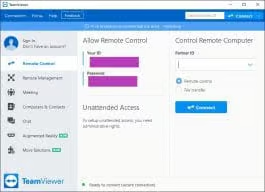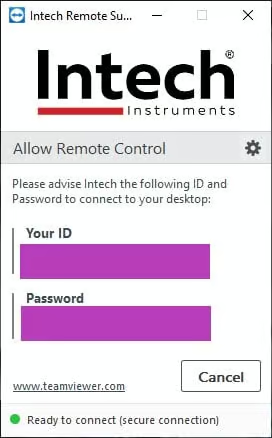








Example Screen:
(this is NOT the file running on your computer):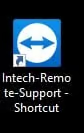
Look for this Icon on your computer Desktop (once the file is saved there) and double click:
This file allows Intech to provide Remote Support assistance to your computer (via TeamViewer software).
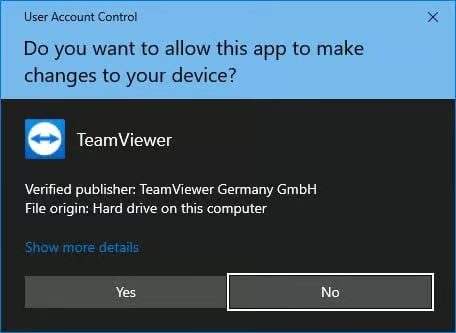
The file runs immediately without installation and does not require administrative rights - just download (for ease of use, we recommend saving the file to your computers' Desktop), and run the exe (click 'Yes' if a UAC Warning window appears); then advise Intech of Your ID and Password.
Internet access is required. Support charges may apply.
First Time Running:
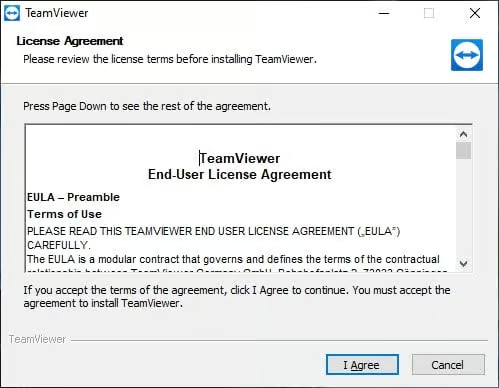
Upon running the software if you are greeted with a License Agreement Click ‘I Agree’.
Click ‘Yes’ to install the software to your computer.
After the software has finished installing provide Intech with your ID and Password.
Help Information:
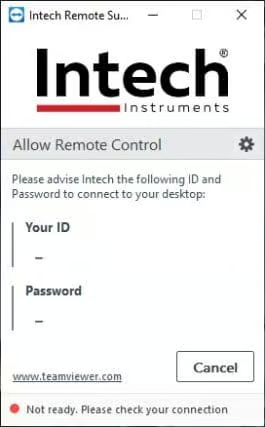
If you don’t have a connection to the internet, the window will look like this:
TeamViewer already running:
If you are greeted with the popup below.
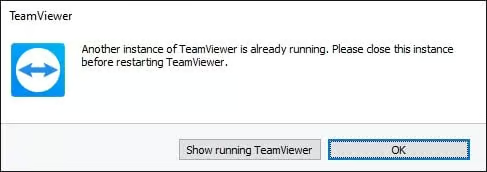
Click on ‘Show running TeamViewer’.
Once the running TeamViewer is showing, you can provide Intech with your ID and Password.