








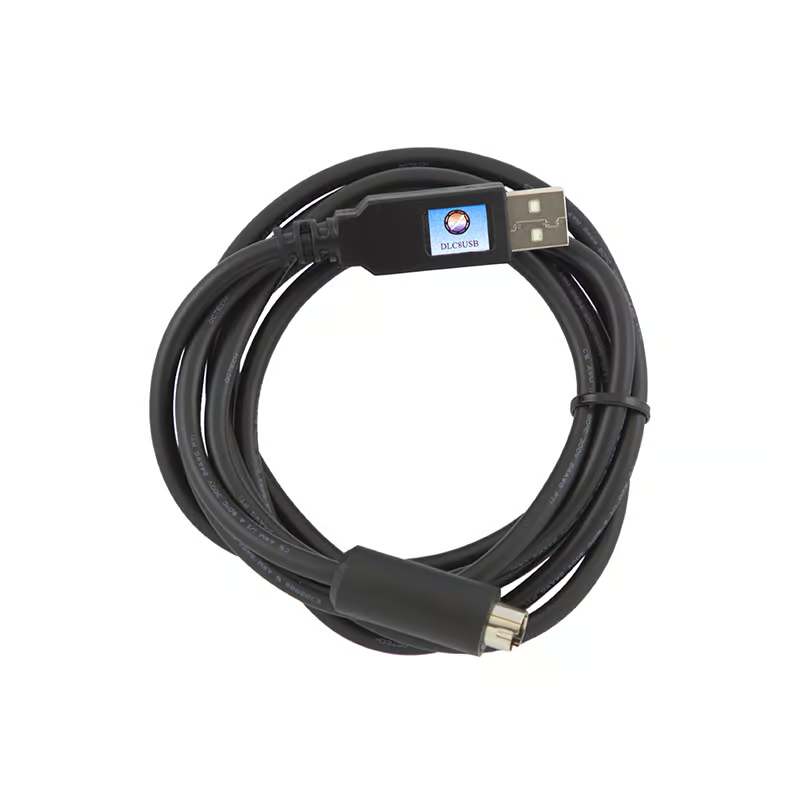
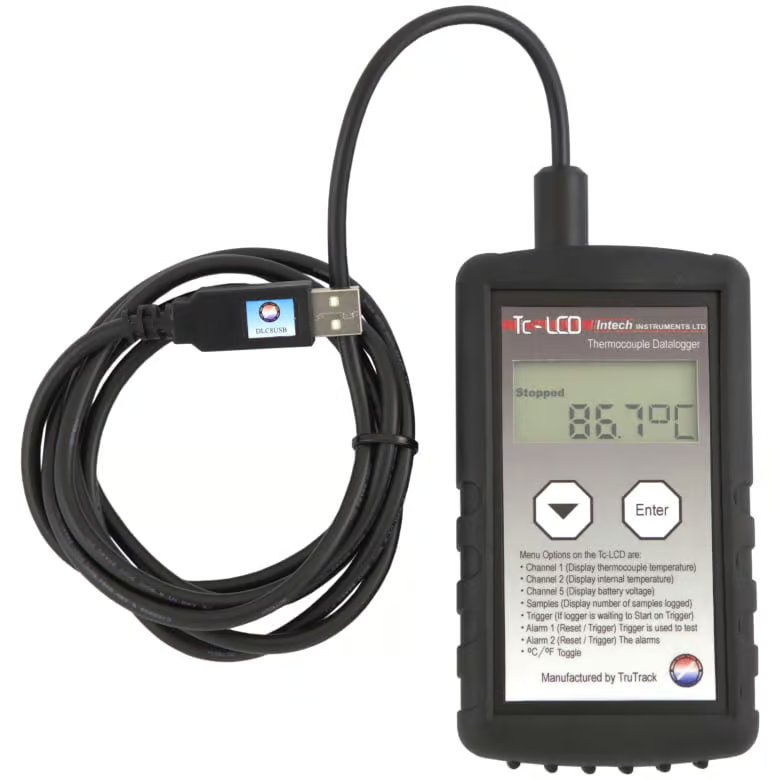
The LCD Series of Data loggers can connect via a USB port using the DLC8USB download cable.
Product Details
The LCD Series of Data loggers can connect via a USB port using the DLC8USB download cable.
Connect directly to the logger using a USB port of the computer.
- Once setup, Omni7 will automatically detect and connect to loggers using the USB connection.
- Omni7 MUST be installed BEFORE the USB download cable is connected to the USB port – this ensures the required USB driver is installed correctly.
Notes on using Intech data loggers with USB to Serial adaptors:
We strongly recommend connecting the LCD Data Loggers via a USB port using the DLC8USB Download cable.
You will need to install drivers that come with the USB to Serial adaptor you are using. After the drivers are installed, you will need to check that the computer has not allocated the RS232 port a number above 8.
This is because OmniLog’s autodetect only looks at the first 8 comm ports.
If it has been allocated a port number greater than 8 this can be changed in:
Start > Control Panel > System > Hardware > Device Manager > Ports (COM & LPT) > USB Serial Port (COMx)
When using OmniLog, we also suggest that you check the following as per this picture (under Tools > Options [Comms Tab]):
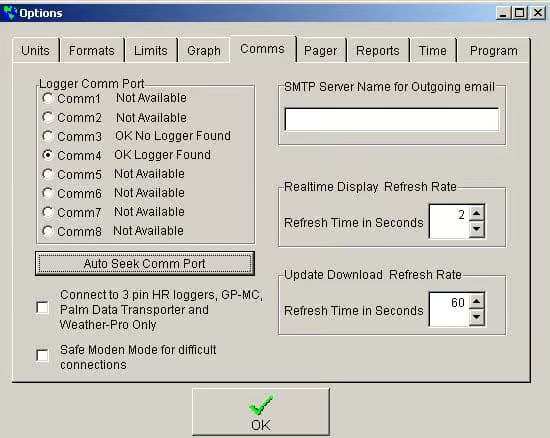
If the Logger Comm Port is set to Comm1 and the USB to serial adaptor is using a different port then OmniLog will not connect to the logger. The easiest way to find out which is the correct port to use is to click the ‘Auto Seek Comm Port’ button as per the picture (with the logger attached to the adaptor using the appropriate download cable). The logger should then be automatically detected. You can then click on the appropriate port that the USB to serial adaptor is using.
Documents
- Using USB Download Cables 348.42 KB
Related Products
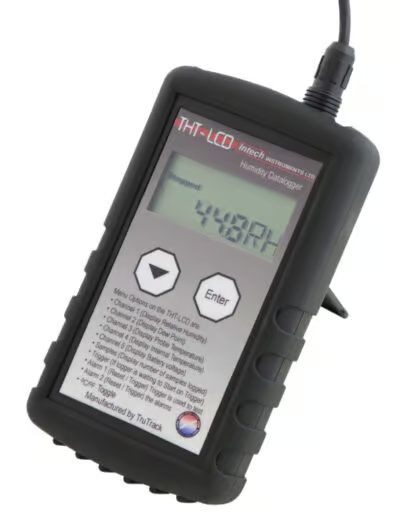
THT-LCD
Humidity and Dual Temperature Data LoggerIn stock
$650.00 Excl. GST
Select options
This product has options that may be chosen on the product page
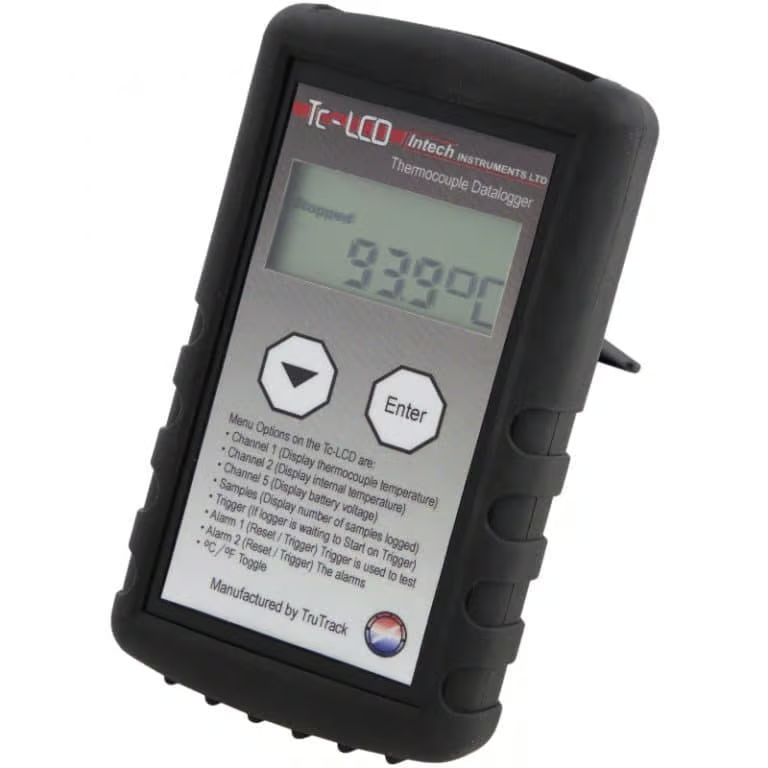
Tc-LCD
Thermocouple Temperature Data LoggerIn stock
$475.00 Excl. GST
Select options
This product has options that may be chosen on the product page
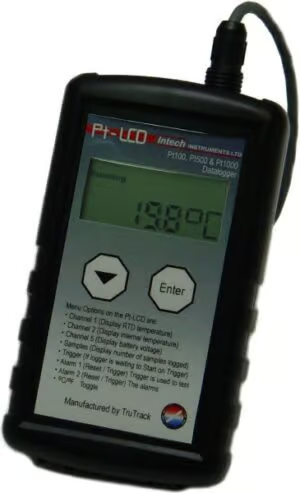
Pt-LCD
RTD Temperature Data LoggerIn stock
$0.00 Excl. GST
Select options
This product has options that may be chosen on the product page
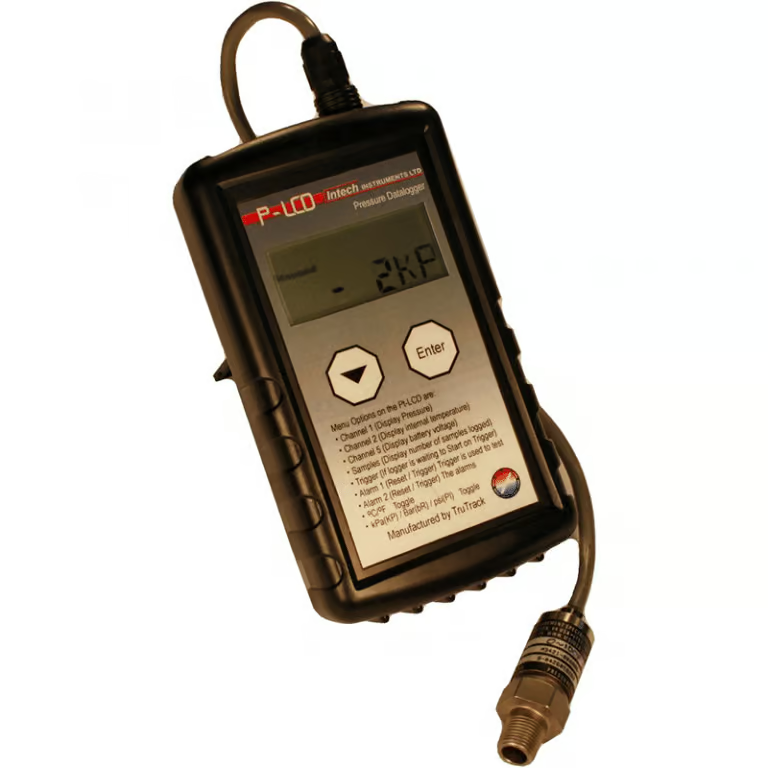
P-LCD
Pressure Data logger with LCD DisplayIn stock
$0.00 Excl. GST
Select options
This product has options that may be chosen on the product page
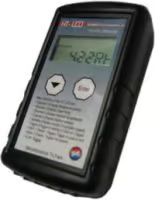
HT-LCD
Humidity & Temperature Data LoggerIn stock
$515.00 Excl. GST
Select options
This product has options that may be chosen on the product page
Similar Products
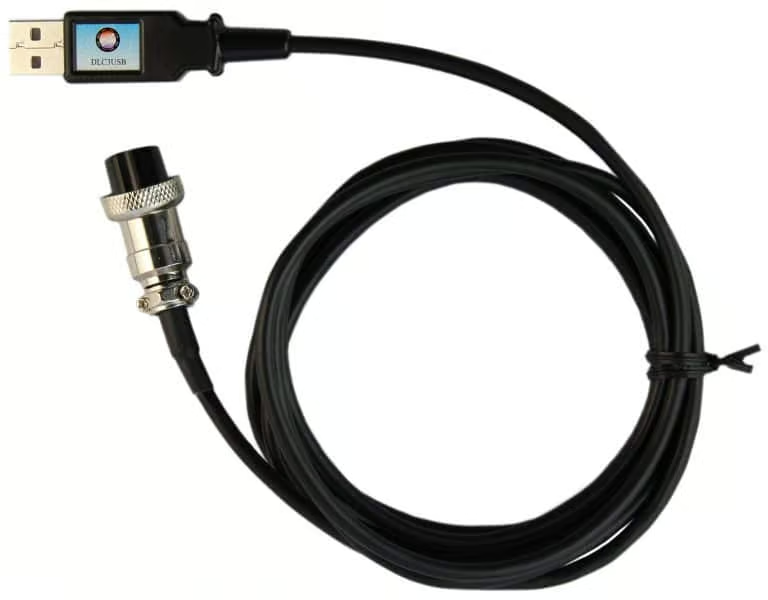
DLC3USB
USB Download cable for HR Series of Data LoggersIn stock
$135.00 Excl. GST
Select options
This product has options that may be chosen on the product page
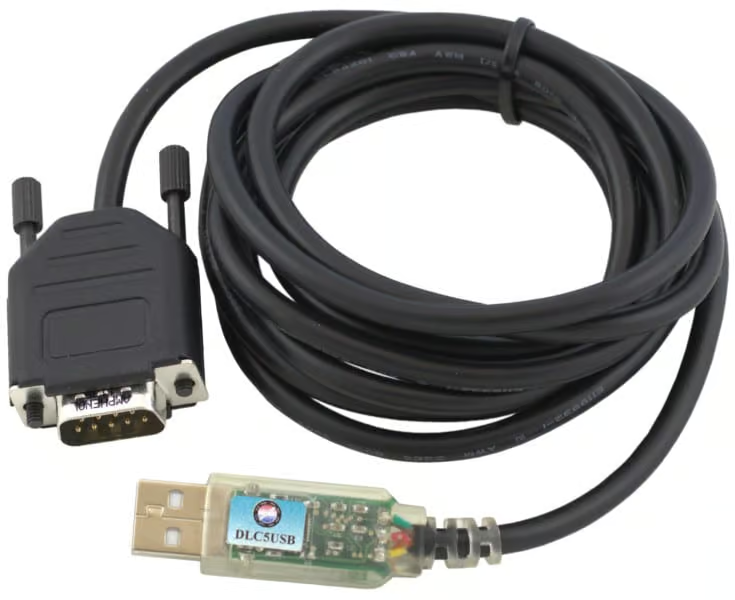
DLC5USB
USB Download cable for GP-MCIn stock
$135.00 Excl. GST
Select options
This product has options that may be chosen on the product page